Spyware scanner and removal for phones
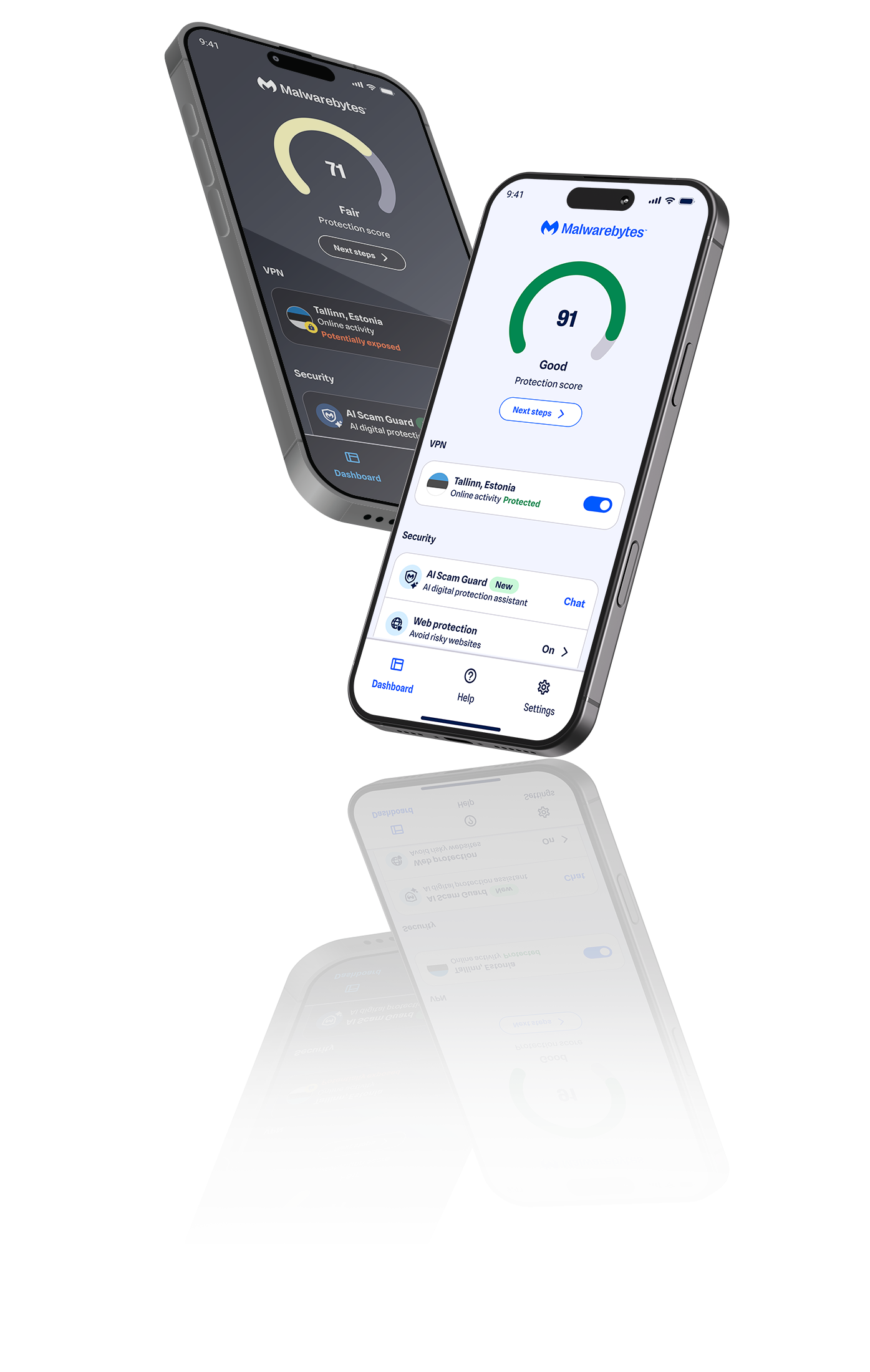
Find and remove spyware on your Android phone, keep it off your iPhone, and check suspicious texts and links with Scam Guard.
Trusted by








Signs of spyware on your phone
Phone spyware is built to stay hidden, so the signs can be easy to miss. Watch for these warning signs.

Fast battery drain
Your phone runs hot, slows down, or loses battery faster than usual, even when you’re not using it.

Unexplained data use
Spyware sends what it collects to a remote server, which can show up as a spike in mobile data.

Apps you don’t recognize
An app you never installed shows up, or an app asks for permissions it doesn’t need.

Messages you didn’t send
Friends get texts or emails from you that you never wrote, or a password changes and locks you out.

Pop-ups and redirects
Ads appear outside your browser, or your browser keeps sending you to pages you didn’t choose.
Check your phone for spyware now
Spyware protection for Android and iPhone
Android and iPhone handle security differently, so Malwarebytes Mobile Security protects each one in the way it allows.
Malwarebytes for Android
Find and remove spyware
Android lets security apps scan your phone, so Malwarebytes can find spyware that’s already there and block new threats as they arrive.
Malwarebytes for iOS
Block the ways spyware gets in
Apple doesn’t let any app scan an iPhone for malware, so Malwarebytes protects you from the links, messages and networks spyware relies on instead.
Depending on your plan, both apps also include Privacy VPN, a Digital Footprint scan, Identity Theft Protection and personalized security guidance. See everything in Malwarebytes Mobile Security.
Not sure about a text or link? Check it with Scam Guard
Spyware often reaches your phone through a scam text, a fake app or a link that looks real. Scam Guard is built into Malwarebytes Mobile Security and its Web version is available for free. Share a suspicious message or link and it tells you whether it’s likely a scam, combining an AI chat companion with Malwarebytes threat intelligence.
How to remove spyware from your phone
The steps depend on whether you have an Android phone or an iPhone.
Remove spyware from Android
01
Install Malwarebytes for Android
Download and install Malwarebytes for Android from Google Play. Tap the “Scan” button and the spyware detector quickly scans your phone.
02
Review spyware threats
After the scan, Malwarebytes reports on any threats that were found and asks if you want to remove them.
03
Remove spyware threats
Once you give the OK, the spyware remover will clean up threats so your phone, files, and privacy are secure.
Remove spyware from iPhone
01
Update iOS
Install the latest iOS update in Settings › General › Software Update. Updates close the security holes spyware uses to get in.
02
Remove what you don’t recognize
Delete apps you didn’t install, and check Settings › General › VPN & Device Management for profiles you didn’t add.
03
Turn on Malwarebytes protection
Install Malwarebytes for iOS to check for a jailbreak and turn on Web, Text and Call Protection so new threats are blocked.
If you still see signs of spyware after these steps, back up your photos and contacts, reset your phone to factory settings, and change the passwords for your important accounts from a different device.
Don’t take our word for it
“We use Malwarebytes on all of our company computers. Our experience is that Malwarebytes is effective and trouble free.”
“Malwarebytes provides an extra, invaluable layer protection against malicious data, and that makes me and our systems feel safer!”
“Eliminating hundreds of potential malware and trackers every week for our entire organization.”
Phone spyware FAQ
What is spyware?
Do I need anti-spyware on my phone?
How does Malwarebytes remove spyware from phones?
Can iPhones get spyware?
Can Android phones get spyware?
Can you scan an iPhone for spyware?
What is Scam Guard?
Get started
Get Malwarebytes Mobile Security for proactive protection against spyware, scams and other threats on your phone.