PUP.Optional.Manuals
Short bio
PUP.Optional.Manuals is Malwarebytes’ detection name for a potentially unwanted program (PUP) associated with the ManualsLib website that lures website users into installing their software including a browser extension.
Symptoms
Users may find these indicators on their Windows system:
- C:\Users\{username}\AppData\Local\Programs\ManualReaderPro
- C:\Users\{username}\AppData\Local\Google\Chrome\User Data\Default\Extensions\fcdnipmaeccfaimldjncmnpjmejgkope
- registry: HKEY_LOCAL_MACHINE\SOFTWARE\Microsoft\Windows\CurrentVersion\Uninstall\{BBCA4855-6EE1-4888-B901-71A1B7F80A25}
Protection
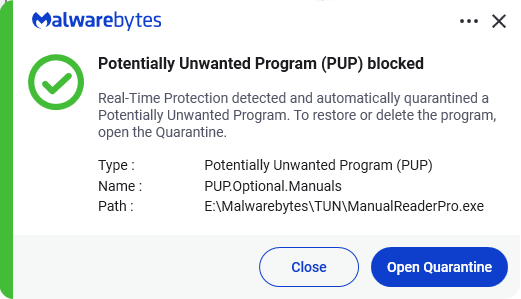
Malwarebytes protects users against PUP.Optional.Manuals by blocking the installer to give users an option to make an informed choice.
Home remediation
Malwarebytes can detect and remove PUP.Optional.Manuals without further user interaction.
- Please download Malwarebytesto your desktop.
- Double-click MBSetup.exeand follow the prompts to install the program.
- When your Malwarebytes for Windowsinstallation completes, the program opens to the Welcome to Malwarebytes screen.
- Click on the Get started button.
- Click Scan to start a Threat Scan.
- Click Quarantineto remove the found threats.
- Reboot the system if prompted to complete the removal process.
Business remediation
How to remove PUP.Optional.Manuals with the ThreatDown Nebula console
You can use the ThreatDown Anti-Malware Nebula console to scan endpoints.

Nebula endpoint tasks menu
Choose the Scan + Quarantine option. Afterwards you can check the Detections page to see which threats were found.
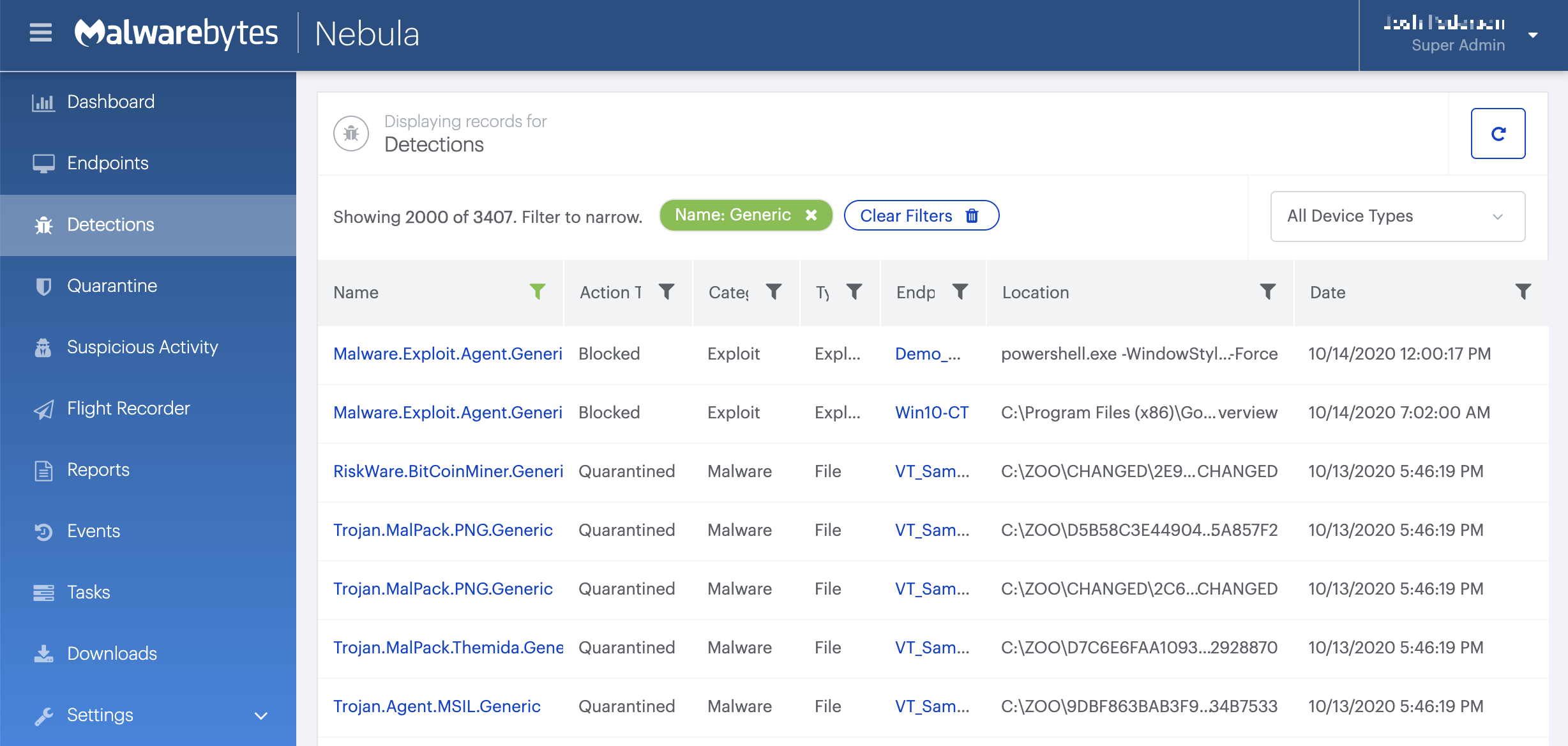
On the Quarantine page you can see which threats were quarantined and restore them if necessary.

Add an exclusion
Should users wish to keep this program and exclude it from being detected in future scans, they can add the program to the exclusions list. Here’s how to do it.
- Open Malwarebytes for Windows.
- Click the Detection History
- Click the Allow List
- To add an item to the Allow List, click Add.
- Select the exclusion type Allow a file or folderand use the Select a folder button to select the main folder for the software that you wish to keep.
- Repeat this for any secondary files or folder(s) that belong to the software.
If you want to allow the program to connect to the Internet, for example to fetch updates, also add an exclusion of the type Allow an application to connect to the internet and use the Browse button to select the file you wish to grant access.


