
Updating Chrome is becoming an almost daily task lately. But it’s too important to ignore.
On Wednesday, July 8, Google released another Chrome update, just one day later after the previous one.
Between them, the two updates fixed 27 security vulnerabilities, including two critical flaws that could be exploited to compromise Chrome. Google says both are “use-after-free” memory vulnerabilities, which can sometimes allow attackers to run malicious code. Google has not reported any of these vulnerabilities as being actively exploited.
The Stable channel has been updated to 150.0.7871.114/.115 for Windows and macOS, and 150.0.7871.114 for Linux. The updates will roll out over the coming days and weeks.
How to update Chrome
If you don’t want to wait for the rollout to reach you, manually updating is easy.
The easiest option is to allow Chrome to update automatically. But you can end up lagging behind on updates if you rarely close your browser or if something goes wrong, such as an extension preventing the update.
To update manually, click the More menu (three dots), then go to Settings > About Chrome. If an update is available, Chrome will start downloading it automatically. Restart Chrome to complete the update, and you’ll be protected against these vulnerabilities.
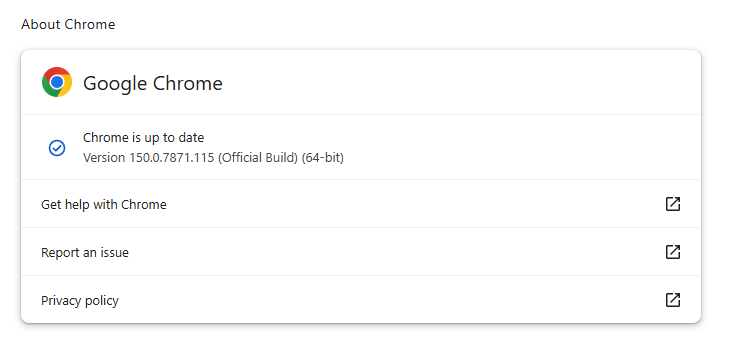
You can find an explanation of the version numbering system and step-by-step instructions in our guide to how to update Chrome on every operating system.
The version numbering system
With updates arriving within days of each other, it’s helpful to understand Chrome’s version numbering system so you can quickly tell whether you’re running the latest release.
The Chrome version number consists of four parts separated by dots, like this:
MAJOR.MINOR.BUILD.PATCH
Each part has a specific meaning. In order of relevance they are:
- MAJOR: This number increases with each major Chrome release, which may include new features or changes.
- MINOR: This number is typically zero and rarely changes. It mainly supports the versioning scheme but doesn’t usually affect how users track updates.
- BUILD: This number increases steadily and identifies a specific build of Chrome’s source code. When comparing versions, it is the first number to check after the major version.
- PATCH: This number increases as Google releases smaller fixes and security updates for a particular build. It resets with each new build and helps identify minor updates within the same build.
For example, a version like 137.0.7151.56 means:
- Major version 137 (the milestone release)
- Minor version 0 (almost always 0)
- Build number 7151 (the code snapshot)
- Patch number 56 (the latest fix for that build)
Why does the version number matter?
The BUILD and PATCH numbers together identify the exact version of Chrome you’re running. Even if two versions share the same major number, higher build or patch numbers means you have a newer, more up-to-date Chrome version.
Sometimes you might see slightly different patch numbers on the same major build, for example, 118.0.5993.117 vs. 118.0.5993.118. This usually happens because Google released a quick fix or minor patch shortly after the initial release. Both are part of the same major update, but the higher patch number is newer.
How to check if you have the latest version
To verify your Chrome version:
- Open Chrome.
- Click the three-dot menu (⋮) in the top-right corner.
- Go to Help > About Google Chrome.
Chrome will display your current version and automatically check for updates. If an update is available, it will download automatically and prompt you to restart your browser.
Stop threats before they can do any harm.
Malwarebytes Browser Guard blocks phishing pages and malicious sites automatically. Free, one click to install. Add it to your browser →