
Google Chrome has been quietly downloading a 4GB AI model onto users’ devices without asking first.
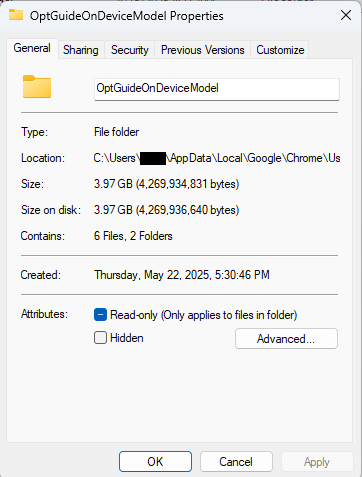
Security researcher Alexander Hanff, aka ThatPrivacyGuy, reports that Chrome has been silently installing Gemini Nano, Google’s on-device AI model, as a file called weights.bin stored in the OptGuideOnDeviceModel directory within users’ Chrome profiles. This 4GB download happens automatically when Chrome determines your device meets the hardware requirements. It does not ask for consent, and sends no notification—not even one of those annoying cookie banners you’ve learned to dismiss without reading.
The Gemini Nano model powers features like “Help me write” text composition assistance, on-device scam detection, and a Summarizer API that websites can call directly. These features are enabled by default in some recent Chrome versions. And here’s the kicker: if you discover the file and delete it, Chrome simply downloads it again.
Why this matters
Let’s start with the obvious problem: a 4GB download isn’t trivial for everyone. If you’re lucky enough to have unlimited fiber internet, you might not notice. But for users on metered connections, mobile hotspots, or in developing countries where data is expensive, Google just cost them real money without permission. For rural users or those with bandwidth caps, this kind of silent transfer can blow through monthly limits in minutes.
Hanff focuses on the environmental angle. He calculated that if this model were pushed to just 1 billion Chrome users (roughly 30% of Chrome’s user base), the distribution alone would consume 240 gigawatt-hours of energy and generate 60,000 tons of CO2 equivalent. That’s not including actually using the model, just the downloads.
But to us, the most troubling aspect is the broader pattern this represents. Just a few weeks ago, we reported another unsolicited AI invasion on our personal computers discovered by Hanff. He documented how Anthropic’s Claude Desktop app, which silently installed browser integration files across multiple Chromium browsers, including five browsers he didn’t even have installed. The integration would reinstall itself if removed, and it also happened without any meaningful user disclosure.
Hanff argues that both cases likely violate EU privacy law, specifically the ePrivacy Directive’s rules about storing data on user devices and the GDPR’s requirements around transparency and lawful processing. While these claims haven’t been tested in court, they highlight a fundamental tension: can companies just install whatever they want on your computer as long as they say it’s a feature of an app you installed?
Google might argue that having an AI on your device provides better privacy than cloud-based alternatives. Which is generally true, but it does not apply here, since Chrome’s most prominent AI feature—the “AI Mode” pill in the address bar—doesn’t even use the local model. According to Hanff’s analysis, it routes queries to Google’s cloud servers anyway.
All in all, users see a 4GB local AI model and reasonably assume their data stays private, when in reality, the most visible AI feature sends everything to Google’s servers.
Tech companies need to stop treating silent deployment as acceptable practice. We see no valid excuse for this. Your device is yours. The storage is yours. The bandwidth is yours. And the electricity bill is yours.
What happened to asking for permission? And when I remove it, I want it gone permanently—not automatic reinstallation.
When are the tech giants going to learn that we don’t want to be left discovering after the fact that our devices have become deployment targets for features we never asked for.
Update May 12, 2026 with do it yourself instructions
How to check if the AI model is on your computer (Windows)
- Open File Explorer
- At the top of the File Explorer window, click the address bar and paste:
%LOCALAPPDATA%\Google\Chrome\User Data
- Press Enter
- Look for a folder named:
OptGuideOnDeviceModel
- If you see it, Chrome has likely downloaded the AI model
How to check on a Mac
- Open Finder
- In the menu bar at the top of the screen, click Go > Go to Folder
- Paste:
~/Library/Application Support/Google/Chrome/
- Look for a folder named:
OptGuideOnDeviceModel
Now, remember, this isn’t malware, and its presence doesn’t mean your computer is infected.
Turn off Chrome AI features
This part is relatively easy. You may find online instructions telling you to edit the Windows registry or use Chrome policies, but for most people the simplest and safest approach is to disable the features directly in Chrome.
We don’t recommend manually editing the registry unless you fully understand what you’re doing. Incorrect changes can cause system problems.
Instead, try this first:
- Open Chrome
- You can copy and paste this directly into Chrome’s address bar and press Enter:
chrome://settings/ai
- On the page that opens, you can turn off features such as:
- “Help me write”
- AI summaries
- On-device AI features
The exact options may vary depending on your Chrome version and region.
- Then restart Chrome to make sure the changes take effect.
This may stop Chrome from downloading or using the AI model, although some users report the files can return after browser updates.
There is probably no need to delete the files unless you specifically need the storage space.
If chrome://settings/ai does not work, the feature may not yet be available in your region, you may be using a managed work or school account, or your version of Chrome may not support these settings yet.
Do you need to delete the OptGuideOnDeviceModel folder?
You can, but there is probably no need to.
If you disable Chrome’s AI features, the downloaded model should no longer be actively used for those features. Leaving the files in place may also prevent Chrome from downloading them again at a later point.
Browse like no one’s watching.
Malwarebytes Privacy VPN encrypts your connection and never logs what you do, so the next story you read doesn’t have to feel personal. Try it free →