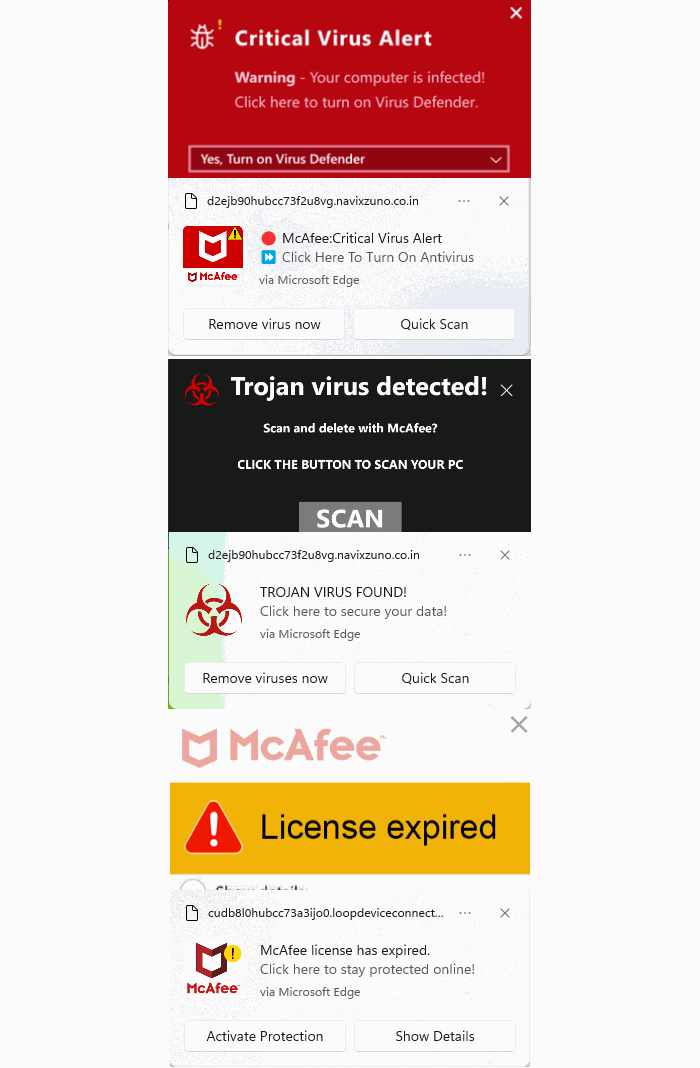
Our support team flagged a number of customers who suspected their device might be infected with malware, but Malwarebytes scans came up empty.
When the customers provided screenshots, our Malware Removal Support team quickly recognized the format as web push notifications.
The reason the scans came up clean is that these notifications aren’t malware on the device. They’re browser notifications from websites that trick users into clicking “Allow.”
We helped the customers disable the push notifications (see below for instructions). But since most of them didn’t know how they got them in the first place, we went down the rabbit hole to find out where they were coming from.
We started with one of the most prevalent domains called unsphiperidion[.]co.in, but all we found was a misleading advertisement that promised the Adguard browser extension and instead led to Poperblocker.

But another clue, also mentioned by the Malware Removal Support team—a domain called triviabox[.]co[.]in—practically brought us straight to the source.
We found a site that challenged our intelligence by prompting us to take a quiz.

Later we found these quizzes come in different flavors. Some about geography, vocabulary, and history, while others are specifically targeted at Canada, Germany, France, Japan, and the US.
But the main goal of these sites is to get you to click the “Start the quiz” button, so the site can send notifications later and make money from ads, affiliate schemes, scams, or unwanted downloads.
What that button does before it starts the quiz is show the visitor a prompt with a misleading background.
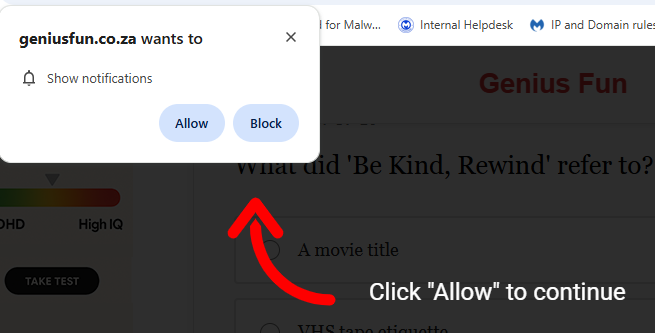
The show notifications text in the actual prompt tells the real story. You’ll be giving the website permission to show you notifications even when you’re not on the website, which makes it hard for users to determine the origin.
The Click “Allow” to continue text with the red arrow on the website itself is nothing more than a well-placed lure to get you to click that Allow button and open the flood gates. To avoid raising suspicion, the visitor is then presented with the quiz, so later on they will have no reason to suspect what started the ordeal.
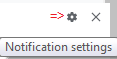
Web push notifications (also called browser push notifications) are not always simple advertisements. Some can be misleading messages about the safety of your computer. The gear icon in the notifications themselves can be very helpful. On Chromium-based browsers, clicking it will lead you to the Notifications settings menu where you can block them.
Unfortunately, we often find them used by “affiliates” to promote security software. If you’re looking for an anti-malware solution that doesn’t make use of such affiliates, you know where to find us.
How to remove and block web push notifications
For every browser, the notifications look slightly different and the methods to disable them are slightly different as well. To make them easier to find, I have split them up by browser.
Chrome
To completely turn off notifications, even from an extension:
- Click the three dots button in the upper right-hand corner of the Chrome menu to enter the Settings menu.
- In the Settings menu and click on Privacy and Security.
- Click on Site settings.
- In that menu, select Notifications.
- By default, the slider is set to Sites can ask to send notifications, but feel free to move it to Don’t allow sites to send notifications if you wish to block notifications completely.
For more granular control, you can use the Customized behaviors menu to manipulate the individual items.
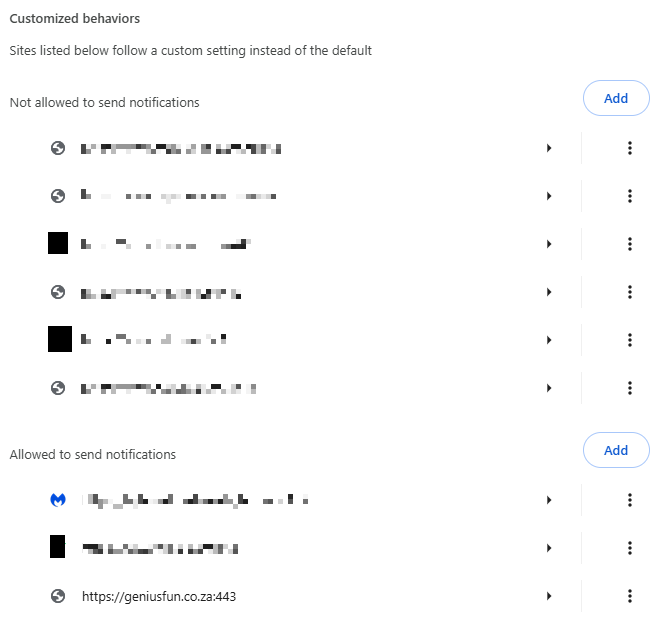
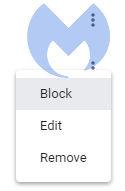
Note that sometimes you may see items with a jigsaw puzzle piece icon in the place of the three stacked dots. These are enforced by an extension, so you would have to figure out which extension is responsible first and then remove it. But for the ones with the three dots behind them, you can click on the dots to open this context menu:
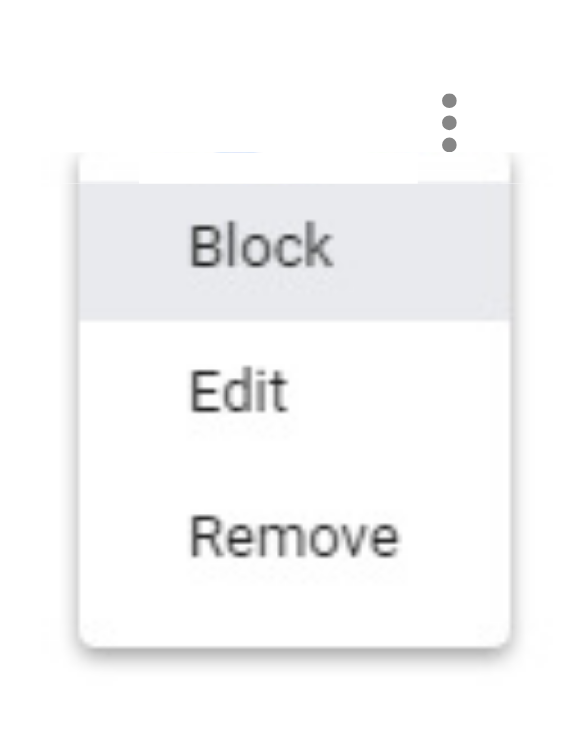
Selecting Block will move the item to the block list. Selecting Remove will delete the item from the list. It will ask permission to show notifications again if you visit their site (unless you have set the slider to Block).
Shortcut: another way to get into the Notifications menu shown earlier is to click on the gear icon in the notifications themselves. This will take you directly to the itemized list.
Firefox
To completely turn off notifications in Firefox:
- Click the three horizontal bars in the upper right-hand corner of the menu bar and select Options in the settings menu.
- On the left-hand side, select Privacy & Security.
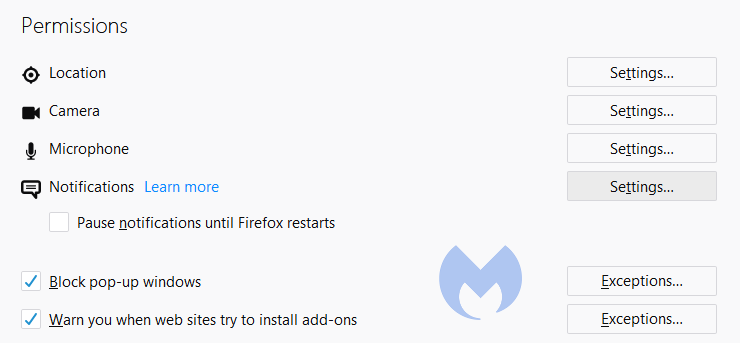
- Scroll down to the Permissions section and click on Notifications.
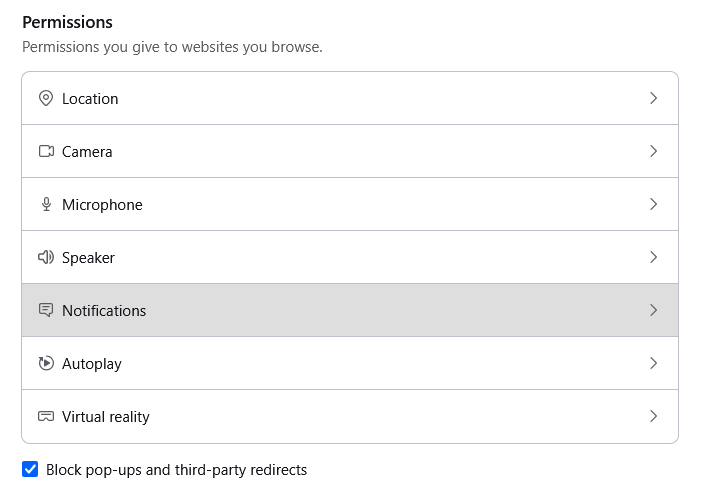
- In the resulting menu, put a checkmark in the Block new requests asking to allow notifications box at the bottom.
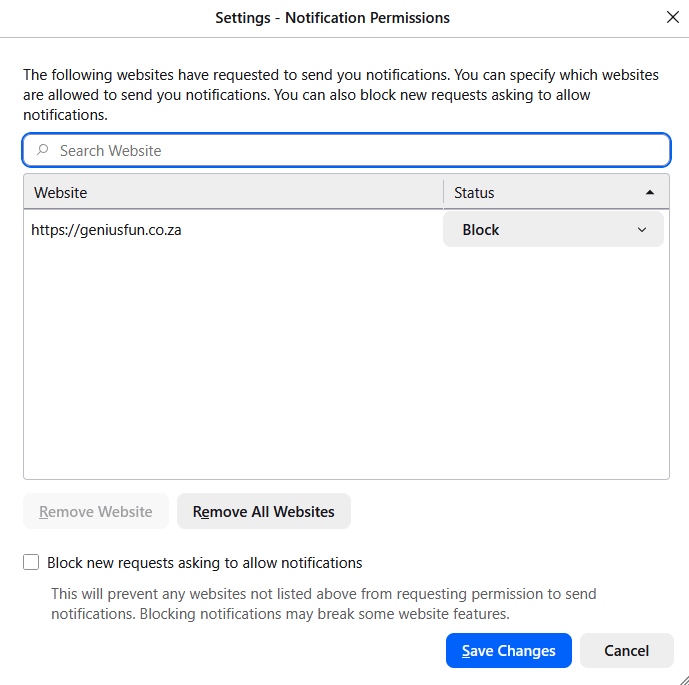
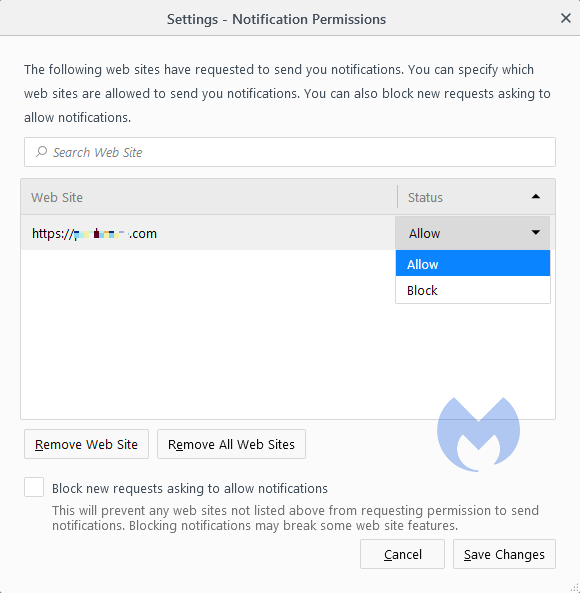
In the same menu, you can apply a more granular control by setting listed items to Block or Allow by using the drop-down menu behind each item.
Click on Save Changes when you’re done.
Opera
Where push notifications are concerned, you can see how closely related Opera and Chrome are.
- Open the menu by clicking the O in the upper left-hand corner.
- Click on Settings (on Windows)/Preferences (on Mac).
- Click on Advanced and select Privacy & security.
- Under Content settings (desktop)/Site settings (Android,) select Notifications.
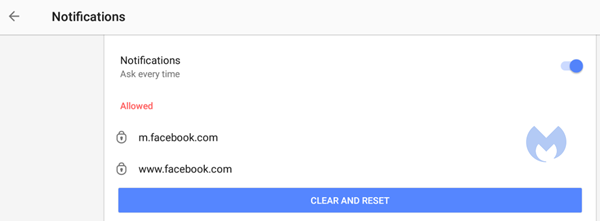
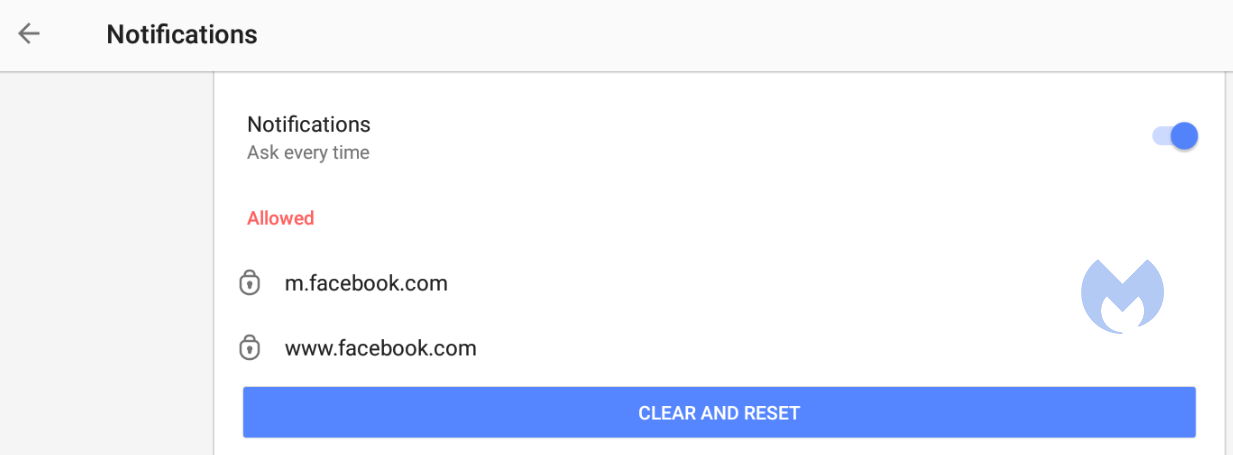
On Android, you can remove all the items at once or one by one. On desktops, it works exactly the same as it does in Chrome. The same is true for accessing the menu from the notifications themselves. Click the gear icon in the notification, and you will be taken to the Notifications menu.
Edge
In Edge, go to Settings and more in the upper right corner of your browser window, then
- Select Settings > Privacy, search, and services > Site permissions > All sites.
- Select the website for which you want to block notifications, find the Notifications setting, and choose Block from the dropdown menu.
To manage notifications from your browser address bar:
To check or manage notifications while visiting a website you’ve already subscribed to, follow the steps below:
- Select View site information to the left of your address bar.
- Under Permissions for this site > Notifications, choose Block from the drop-down menu.
Safari on Mac
On your Mac, open the Apple menu, then
- Choose System Settings, then click Notifications in the sidebar. (You may need to scroll down.)
- Go to Application Notifications, click the website, then turn off Allow Notifications.
The website remains in the list in Notifications settings. To remove it from the list, deny the website permission to send notifications in Safari settings. See Change websites settings.
To stop seeing requests for permission to send you notifications in Safari:
- Go to the Safari app on your Mac.
- Choose Safari > Settings.
- Click Websites, then click Notifications.
- Deselect Allow websites to ask for permission to send notifications.
From now on, when you visit a website that wants to send you notifications, you aren’t asked.
Are these notifications useful at all?
While we could conceive of some cases where push notifications might be found useful, we would certainly not hold it against you if you decided to disable them altogether.
Web push notifications are not just there to disturb Windows users. Android, Chromebook, MacOS, even Linux users may see them if they use one of the participating browsers: Chrome, Firefox, Opera, Edge, and Safari. In some cases, the browser does not even have to be opened, and it can still display push notifications.
Be careful out there and think twice before you click “Allow.”
Indicators of Compromise (IOCs)
During the course of the investigation we found—and blocked—these domains related to the campaign:
- dailyrumour[.]co.nz
- edifaqe[.]org
- geniusfun[.]co.in
- geniusfun[.]co.za
- genisfun[.]co.nz
- holicithed[.]com
- ivenih[.]org
- loopdeviceconnection[.]co.in
- mindorbittest[.]com
- navixzuno[.]co.in
- quizcentral[.]co.in
- quizcentral[.]co.za
- rixifabed[.]org
- triviabox[.]co.in
- uhuhedeb[.]org
- unsphiperidion[.]co.in
- yeqeso[.]org
- ylloer[.]org
From reporting threats to removing them.
Cybersecurity risks should never spread beyond a headline. Keep threats off your devices by downloading Malwarebytes today.