Key takeaways
- A password manager is software that securely stores and manages login credentials in an encrypted vault, protected by a single master password.
- It eliminates the need to remember multiple passwords while helping generate strong, unique passwords for each account, reducing the risk of breaches.
- Password managers can automatically fill in login details, save time, and often sync across devices for convenient access anywhere.
- They provide added security benefits, such as refusing to autofill your login on lookalike phishing sites and limiting damage from compromised accounts by making unique passwords easy.
- Many password managers can now store passkeys too, a newer, phishing-resistant way to sign in without a password.
- While generally safe and effective, they still require good security practices like protecting the master password, using multi-factor authentication, and keeping devices free from malware.
What is a password manager?
A password manager is an app that creates, stores, and fills in your passwords for you. Your logins are kept in an encrypted vault, and you unlock that vault with one master password, so that’s the only password you need to remember.
Once upon a time, during the early years of the Internet, you may have had a handful of passwords for a few essential web applications that you used to shop, study, stay connected, and get work done. Today, things are much more complicated. Most of us now juggle dozens, if not hundreds, of online accounts.
While technology promises to make our lives easier, and it generally does, every new website and application we sign up for is another password we have to remember. For most, it’s become impossible to remember all of them. Think about yourself: do you reuse your passwords across multiple accounts, as so many Internet users do? This is a big no-no.
Using giant lists of stolen passwords (aka “dumps”) bought off the dark web, cybercriminals can try those passwords on other sites (a type of brute force attack called credential stuffing) or use old passwords to extort users in scams. This is the data breach domino effect. One breach leads to another and another and so on.
Stolen passwords remain one of attackers’ favorite tools. According to the 2026 Verizon Data Breach Investigations Report, stolen credentials were used in more than a third of confirmed breaches. 1234567, anyone?
So, how did we get here, and what can we do about it?
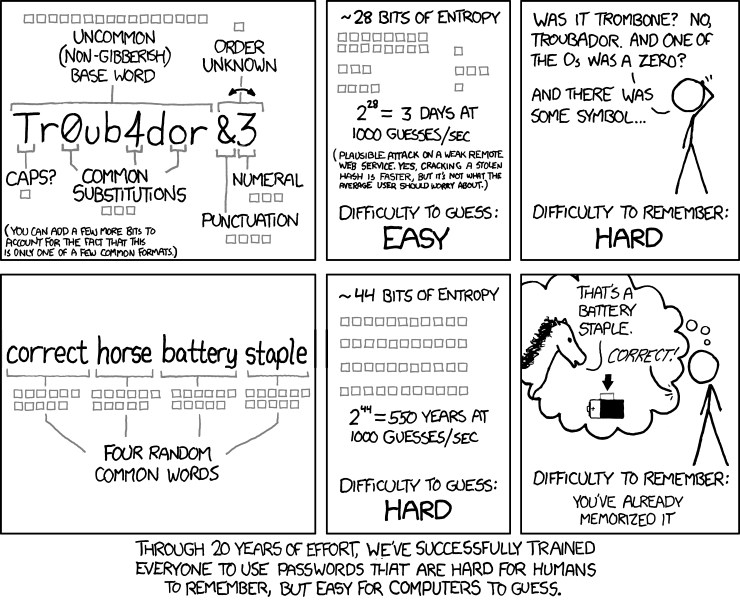
The famous xkcd web comic “Password Strength” explained it best: after 20 years of effort, we’ve trained everyone to use passwords that are “hard for humans to remember, but easy for computers to guess.”
It’s true. 20 years ago cybersecurity professionals admonished consumers for failing to change default passwords on IoT devices (like your Internet router) or using easy to guess passwords like “12345” or “password”. Out of this came the long and strong password xkcd pokes fun at: a common word with a mixture of uppercase and lowercase letters, at least one number, and one symbol.
When creating a new account, websites demand that we create long and strong passwords. Failing that, we aren’t even allowed to make an account. Assuming one gets past the account creation phase, you’re going to promptly forget the Enigma machine cipher you just made and resign yourself to using the “Forgot Password?” link as your everyday log in option.
Fortunately, you don’t have to remember all those passwords. A password manager can remember them for you.
Malwarebytes Labs defines a password manager as “a software application designed to store and manage online credentials. It also generates passwords. Usually, these passwords are stored in an encrypted database and locked behind a master password.”
How does a password manager work?
Once all your account usernames and passwords have been entered into the vault, your master password is the only one you have to commit to memory. Entering your master password unlocks your password vault, and from your vault you can then retrieve whatever password you need.
Behind the scenes, the password manager encrypts everything in your vault. Most reputable password managers use what’s called zero-knowledge encryption: your vault is encrypted and decrypted on your own device, so even the company that stores it can’t read your passwords. Your master password is the key.
When you visit a website, the password manager checks the web address and offers to fill in the matching username and password. When you create a new account, it can generate a strong, random password and save it for you automatically. Many password managers now store passkeys as well, so you can use the same vault as sites move away from passwords.
What are the benefits of using a password manager?
You don’t have to memorize all your passwords anymore. You only need to remember the master password that unlocks your password vault. And if you opt for a cloud-based password manager, you can access your password vault anywhere, from any device.
They can auto-generate highly secure passwords for you. Password managers will typically ask you if you’d like to use an auto-generated password whenever you create a new account with a website or application. These random passwords are long, alphanumeric, and essentially impossible to guess.
They can alert you to a phishing site. Here’s a quick gloss on phishing scams. Spam emails are spoofed or faked to look like they’re coming from a legitimate sender, like a friend, family member, coworker, or organization you do business with. Links contained within the email direct to similarly spoofed malicious websites designed to harvest login credentials. Because a password manager ties each saved login to a specific web address, it won’t offer to autofill your username and password on a lookalike site. That’s your cue to take a closer look before typing anything in. Not sure about a link? Check it with the Malwarebytes Scam Link Checker.
They can help your beneficiaries when you pass away. This is called a digital inheritance. Many password managers offer an emergency access feature that lets you name a trusted person, such as a family member or whoever you designate to administer your estate, who can access your password vault in the event of your death. Set it up ahead of time, since your family usually can’t get in without it.
Password managers save time. Beyond just storing passwords for you, many password managers also auto-fill credentials for faster access to online accounts. In addition, some can store and auto-fill name, address, email, phone number, and credit card info. This can be a huge timesaver when shopping online, for example.
Many password managers sync across different operating systems (OSes). If you’re a Windows user at work and a Mac user at home, jump on your Android Monday through Friday and turn to iOS on the weekends, you’ll be able to quickly access your passwords regardless of which platform you’re on. Ditto for all the most popular web browsers; i.e., Chrome, Firefox, Edge, and Safari.
They help protect your identity. In a roundabout way, password managers help protect against identity theft, and here’s why. By using a unique password for every site, you’re essentially segmenting your data across each website and application you use. If a criminal hacks one of your accounts, they won’t necessarily be able to get into any of the others. It’s not foolproof, but it’s an additional layer of security that you’ll certainly appreciate in the aftermath of a data breach.
Are password managers safe?
Yes, for most people a reputable password manager is far safer than reusing passwords or keeping them in a notes app. Password managers have been hacked, but their overall track record when it comes to securing user data is very good. The best-known example is LastPass, which disclosed in 2022 that attackers had stolen copies of customers’ encrypted password vaults. Because those vaults were encrypted, attackers still needed each user’s master password to open them, which is exactly why a long, unique master password matters.
There are many reputable password managers that use strong encryption and are safe to use. When choosing one, look for zero-knowledge encryption, support for multi-factor authentication, and a history of independent security audits. NordPass Password Manager is one example.
It is important to remember that if your phone or computer is infected with malware, such as an infostealer or keylogger, your password manager can also be breached. So, keeping your anti-malware and antivirus software up to date is a must.
If your password manager provider reports a breach, change your master password first. Then change the passwords for your most important accounts, like email and banking, and make sure multi-factor authentication is turned on.
What are the types of password managers?
Desktop-based password managers store your passwords locally on your device, like your laptop, in an encrypted vault. You can’t access those passwords from any other device, and if you lose the device, then you lose all the passwords stored there. Locally-installed password managers are a great option for people who just don’t want their data stored on someone else’s network. Some locally-installed password managers strike a balance between privacy and convenience by allowing you to create multiple password vaults across your devices and sync them when you connect to the Internet.
Cloud-based password managers store your encrypted passwords on the service provider’s network. The service provider is directly responsible for the security of your passwords. The primary benefit of cloud-based password managers, 1Password and NordPass being good examples, is that you can access your password vault from any device as long as you have an Internet connection. Cloud-based password managers usually come in several forms, most commonly as a browser extension, desktop app, and mobile app.
Built-in password managers come with your browser or operating system, such as Google Password Manager in Chrome and Android, the Passwords app on Apple devices, and the password manager in Microsoft Edge. They’re free, convenient, and have improved a lot in recent years. Their main limitation is that they work best inside their own ecosystem, so if you mix brands across your devices, a dedicated password manager is usually easier.
Single sign-on (SSO). Unlike a password manager that stores unique passwords for every application you use, SSO allows you to use one sign-in for many applications. Think of SSO as your digital passport. When entering a foreign country, a passport tells the officials at customs and immigration that your country of citizenship vouches for you and that you should be allowed to enter with minimal hassle. Likewise, when using SSO, you verify your identity once with the SSO provider, and the SSO provider vouches for you with each application. Businesses favor SSOs over password managers for a few reasons. Chiefly, SSO is a secure and convenient way for employees to access the applications they need to get their jobs done. SSOs also reduce the amount of time IT spends troubleshooting and resetting forgotten passwords.
Password best practices
Don’t reuse passwords. Even with a password manager. Instead, create unique passwords for every site and let your password manager do what it’s designed to do. Use a secure strong password generator to create unique passwords for all your accounts.
Make passwords long and random. Many password managers helpfully auto-suggest strong passwords whenever you create an account for a new site. If not, length matters more than complexity. Current NIST guidelines recommend passwords of at least 15 characters when a password is your only line of defense. The more random and nonsensical, the better, especially since you won’t be required to remember it. The password manager will do that. The one key difference is in creating your master password (the one that unlocks all the other passwords). This one you will need to remember, so unless you’ve got an eidetic memory, a passphrase is your best bet.
Use a passphrase. When it comes to creating your master password, try using a passphrase; i.e., a series of words that are easy to remember, but hard to guess. Something familiar with a strange twist, for example: “bean burrito ice cream split.” Or just a bunch of random things that a human can easily visualize, but a computer can’t: “fancy rat neon avocado car.” Use your imagination, and don’t use these examples, since published passphrases end up on attackers’ lists. Pets, children, or other family names, or lines like “Let me in!” are far too common, and therefore easy for cybercriminals to decipher.
Enable two-factor (2FA) or multi-factor authentication (MFA). One of the best ways to secure any account, password manager or not, is to enable MFA. With an MFA-enabled password manager, you’ll be required to verify your identity using two or more authentication factors, which include something you know, something you possess, and something you are. The something you know is typically your password, but it can also be a PIN. Something you possess might be your mobile phone, bank card, or a physical security key. Finally, something you are can be verified using biometrics, such as facial, voice, or iris recognition and fingerprint ID. Behavioral biometrics, such as keystrokes, can also be applied.
This extra layer of security means anyone attempting to log into your account (yourself included) will need to control those additional authentication factors outside of username and password. An example of this would be: After you enter your master password to access the password manager, a code would be sent to your mobile phone, which you would then need to enter before accessing the vault. One thing to keep in mind when using your phone as an authentication factor: phone numbers can be hijacked.
It’s called SIMjacking (aka SIM-swapping) and it happens when a cybercriminal, posing as you, convinces your phone carrier to reassign your phone number to their phone by successfully answering your security questions. A cursory social media search is often all it takes for crooks to glean the answers they need. And once criminals have control of your phone, they have everything they need to steal your identity. Accordingly, you might look to an authenticator app like Authy or Google Authenticator, or a physical security key, instead for critical accounts.
Use passkeys where you can. More and more sites let you sign in with a passkey instead of a password. Passkeys use your fingerprint, face, or device PIN, and they can’t be phished or reused the way passwords can. If your password manager supports passkeys, it can store and sync them alongside your passwords.
Think twice about free password managers. Many of the most popular free password managers operate under a freemium business model, meaning you have to pay up if you want some features. Before you choose one, check what the free version includes. Do you need your passwords to sync across browsers and devices? Do you need digital inheritance? Do you need to share logins with family? Does it support multi-factor authentication? MFA, in particular, is a must have. If the free version falls short on the features you need, a paid password manager is worth it.
Create a password manager policy. Here’s a tip for small- and medium-sized businesses: Create a password manager policy and let employees know it’s okay to use a password manager to secure their work accounts. Your staff is already using a hodgepodge of potentially insecure methods to try and manage their many passwords, and stolen and reused passwords remain one of the most common ways attackers get in. An official password manager policy is your first line of defense against a cyberattack on your network.
See also: Passkey